Where the camera misses the point
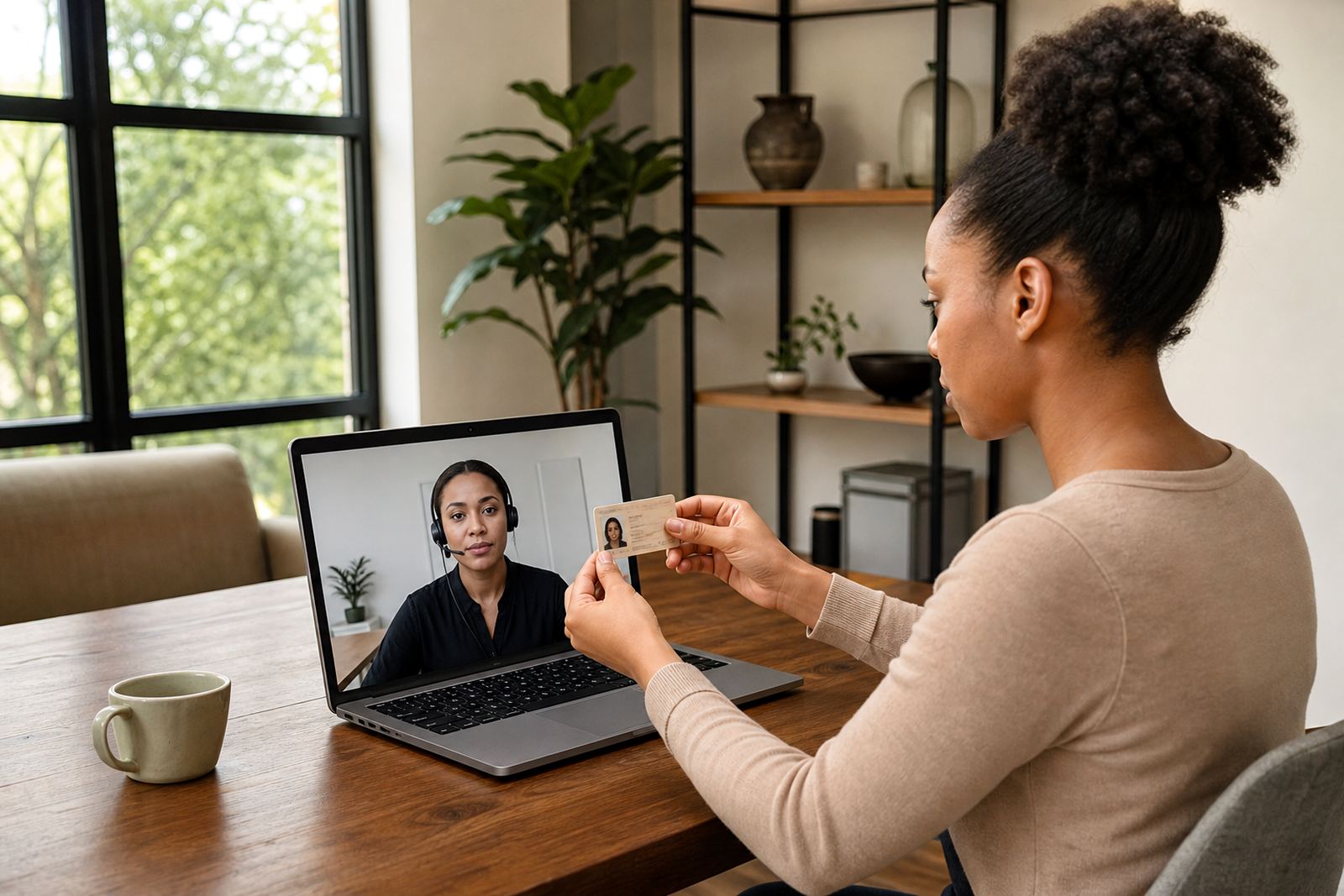
Most session trouble starts with the first thirty seconds. A phone held too close trims the forehead and chin, while a camera set too far back turns the ID document into a small, unreadable block. In a guided video session the agent needs a clear face, a full document edge and enough stillness to compare the person with the photograph.
In Rosebank and Sandton, where many customers join from offices, the setting is often neat but the frame can still be wrong. A glossy table, a ceiling light or a window behind the person changes the picture more than people expect. The fix is usually simple: lift the phone to eye level, turn the body slightly away from the window and keep the document flat under softer light.
- Keep the face centred, not low in the frame.
- Show all four corners of the ID document.
- Avoid backlight from windows or glass walls.
- Hold still for the document capture step.
Glare on plastic and paper
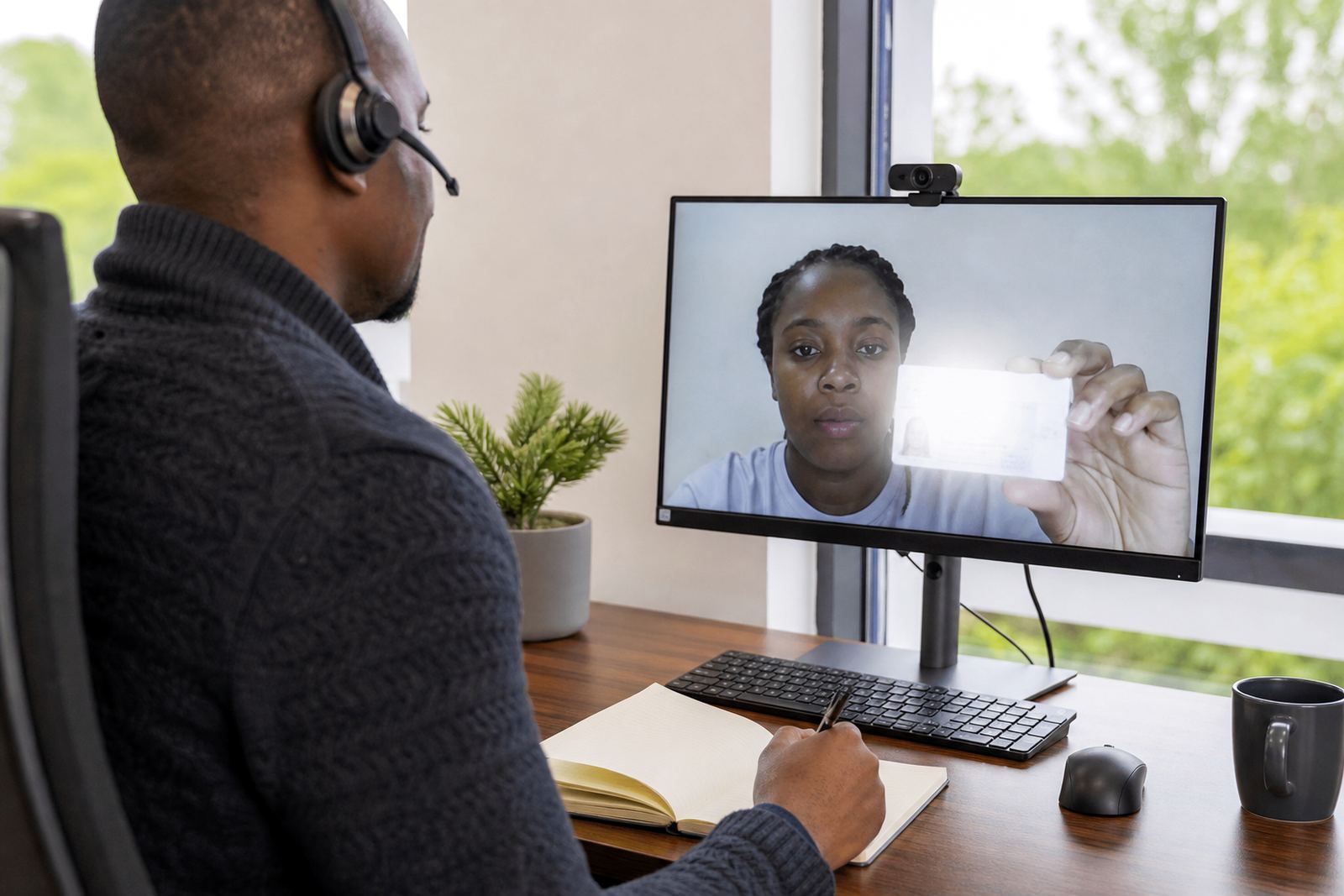
Glare is one of the most common blockers in remote ID work because it hides the detail the agent must inspect. A laminated card, a clear sleeve or a shiny surface can reflect light straight into the camera. That reflection can wash out the photograph, the ID number or the security features that should be visible during the check.
For customers in Cape Town, Durban or Gqeberha, daylight can shift quickly across the day and make this worse. A person may begin the session near a bright window and then wonder why the image looks pale or blown out. Ask them to move one step sideways, lower the overhead light if possible, or place the document on a matte surface rather than on glass.
Do not rush this part. A second image taken after adjusting the angle is often far better than five hurried attempts from the same spot.
- Change the angle before increasing brightness on the device.
- Use a plain background with low reflection.
- Wipe dust or fingerprints from the document surface.
- Check the camera lens before the session starts.
Weak signal, frozen video and broken flow
A weak connection interrupts the rhythm of the verification call. The agent may miss the moment when the customer turns the document, or the face comparison may be lost in a frozen frame. A short freeze sounds minor but it can create gaps in the record and force the session to move backwards instead of forwards.
Across Johannesburg, Pretoria and Midrand, customers often join from a busy branch office or from a shared home connection. Video verification does not need a luxury setup, but it does need steady data and a device that can keep up. If the image keeps jumping, close extra apps, move closer to the router or switch to a more stable network before starting again.
Teams that handle onboarding at scale often build a small pre-check into their process. That step saves time later and keeps the customer from repeating the same capture three times because the audio dropped out or the image stalled.
When the document is present but unreadable
Sometimes the issue is not absence, but quality. The customer has the ID document in hand, yet the text is blurred, cropped or covered by a thumb. This is common when people are nervous and grip the card too tightly. The agent needs enough clarity to compare the picture with the person on screen and to record the right details for the file.
A useful habit is to ask for a slow movement rather than a quick pass in front of the camera. One steady capture works better than repeated waving. Where a passport or smart ID is used, the same rule applies: keep it level, show the page or card fully and pause long enough for the agent to inspect the details.
In many South African onboarding flows the document step sits inside FICA customer due diligence and record keeping practices, so sloppiness here creates extra admin later. Clean capture at the start makes the file easier to review and easier to store with the right consent trail.
Face match problems that look small on screen
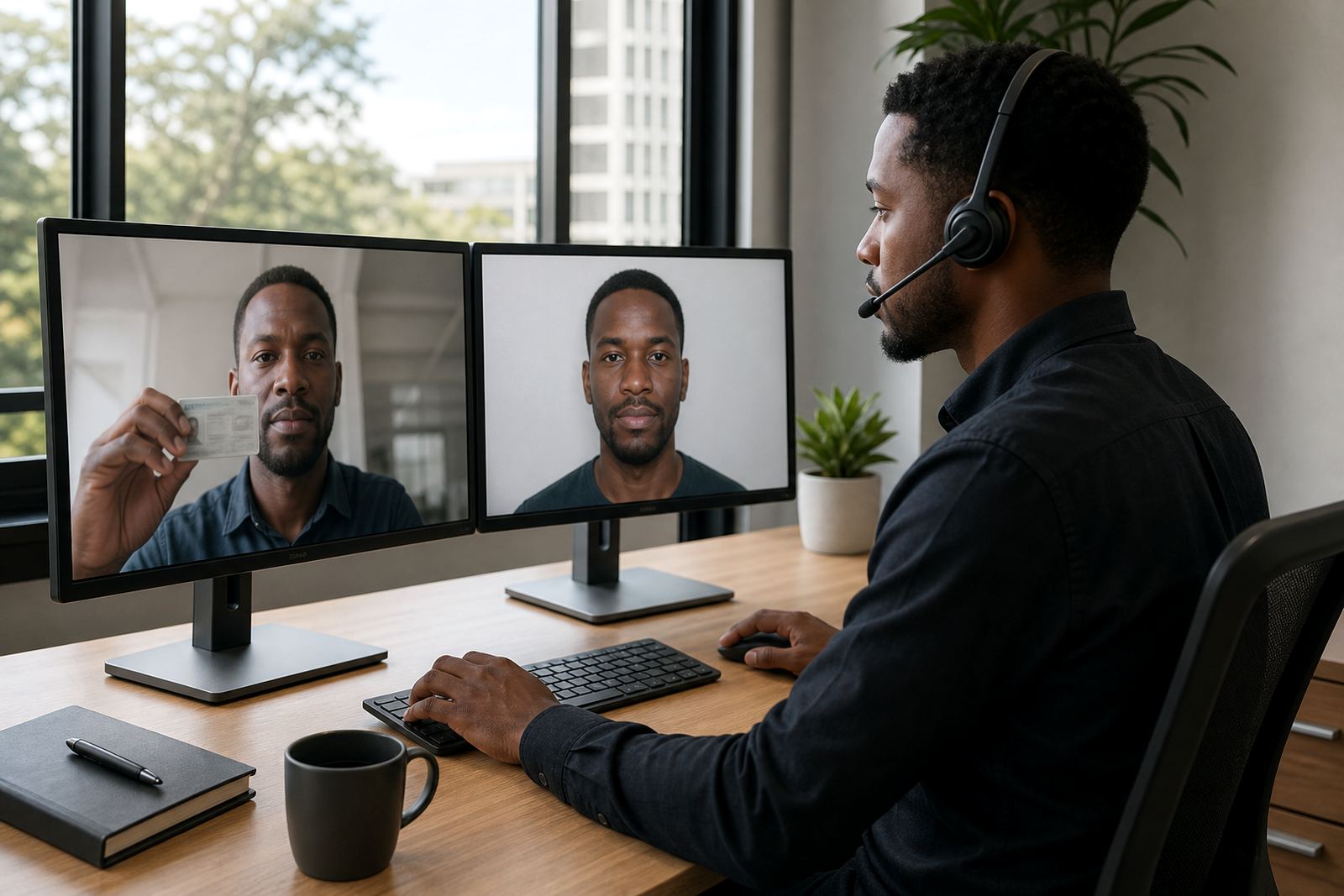
Face comparison is not only about likeness. It also depends on lighting, expression, angle and movement. A person who keeps looking down at the phone may hide part of the face. A hoodie, cap or heavy shadow can alter the view enough to make the comparison uncertain. The session should feel calm but not casual, because the agent is checking whether the live participant matches the document and whether the person present appears genuine.
Good practice is plain enough for most users to follow:
- Remove hats, sunglasses and anything that covers the face.
- Keep the chin level and look at the lens when asked.
- Use neutral lighting from the front, not from behind.
- Pause speech while the agent takes the comparison image.
Training helps here because staff can explain the steps in a way that feels natural, not formal or stiff. A clear script also lowers the chance that the customer tries to move too quickly through the part where the face and document need to be checked separately.
Keeping the record clean without making the call heavy
Remote identity work needs more than a successful video call. The record must be handled with care, and consent should be part of the session from the start. That means the business knows what was shown, what was captured and where the evidence sits in the workflow. In practice, this is where clear script design, escalation paths and quality monitoring matter most.
For teams in Johannesburg, Durban or Gqeberha, the operational challenge is often volume. A small error repeated across many sessions becomes a file issue later. A weak opening script, unclear escalation step or missed note on consent can leave the onboarding team guessing when they review the case.
- Use one fixed order for greeting, consent and capture steps.
- Keep escalation notes short and factual.
- Store only the material the process actually needs.
- Review failed sessions to spot repeat causes.
Where onboarding is handled remotely, the best systems feel calm to the customer and tidy to the back office. That balance comes from workflow mapping, staff training and a sensible pilot launch before the process is pushed across every branch and client queue.