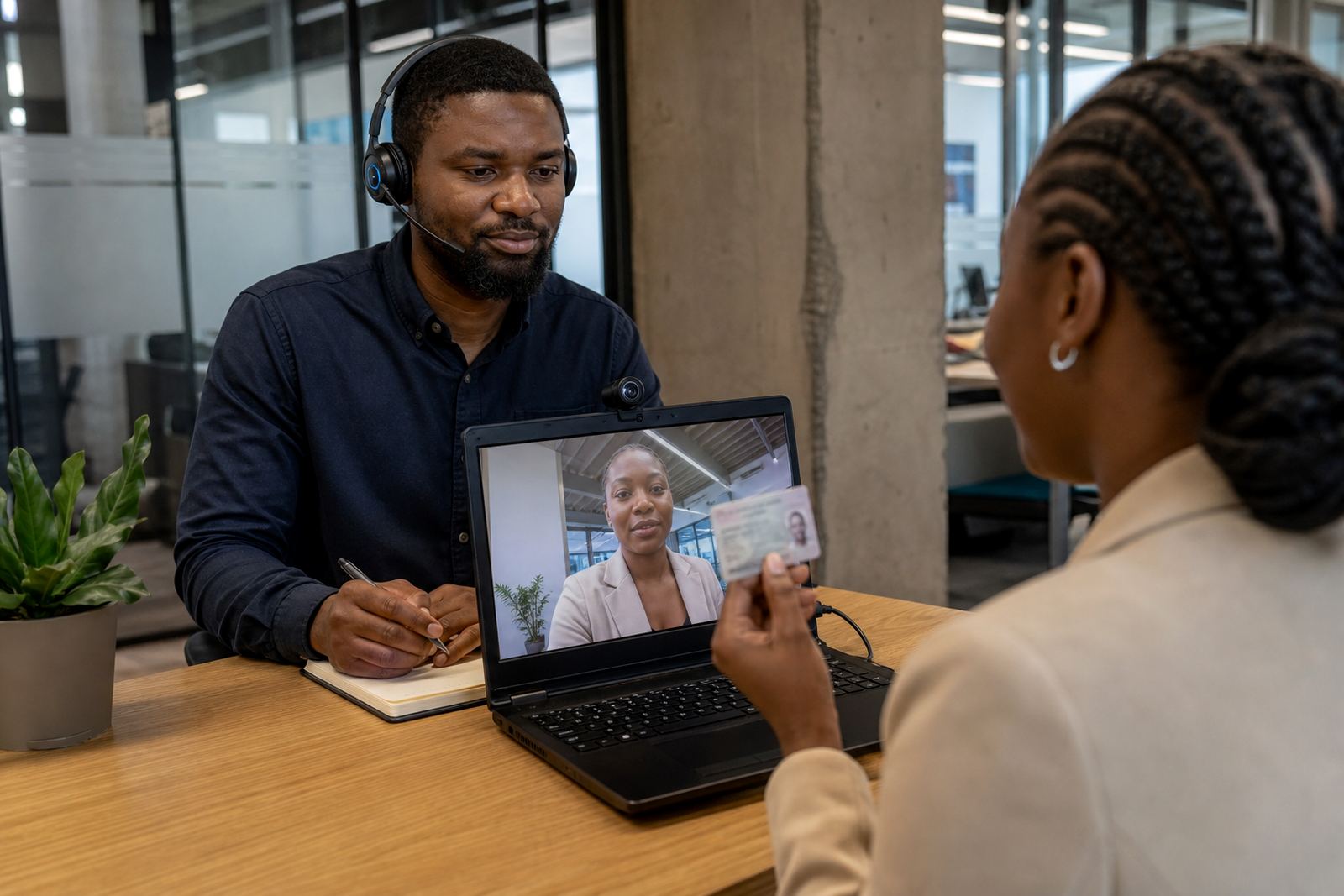
Device That Can Hold a Stable Video Call
Use a phone, tablet or computer that can run a live video session without freezing or dropping sound. A charged battery helps, but a plug nearby is useful if the session runs longer than expected. The device should allow the camera and microphone to stay on at the same time, with enough storage or memory for the session app or browser to work properly.
A larger screen makes it easier for the customer to follow prompts and show the document in frame. If the session is on a benchtop, a camera at eye level is better than one looking up from the keyboard. A cracked screen, unstable stand or poor audio can slow the process, so it helps to test the device before the appointment.
- Phone, tablet or laptop with camera and microphone
- Battery charged or power available
- Stable internet connection
- Enough memory and browser access for video access
Camera Position And Picture Quality
The agent needs a clear view of the face and the identity document. The camera should not be too close, and it should not cut off the top of the head, chin or document corners. A front facing camera often works best, as it keeps the face aligned while the customer follows guided steps.
Blurry video makes it harder to compare the face on screen with the person in the session. Keep the lens clean and avoid digital zoom unless the agent asks for it. If the camera keeps focusing on the background instead of the face, move to a quieter spot and place the device on a flat surface so the image stays steady.
- Clean lens and steady framing
- Face fully visible from forehead to chin
- ID document shown with all corners in frame
- No heavy blur, glare or shaky movement
Light That Shows The Face And ID Clearly
Good light makes a major difference in a video KYC session. Stand near a window or under even indoor light, and avoid sitting with a bright light behind the head. Backlight can turn the face into a dark shape and leave the ID unreadable.
Too much shadow across the eyes or document can also delay the check. Natural light works well in the morning or early afternoon, but direct sun can create harsh contrast. If the room is dim, switch on a steady lamp and point it away from the camera so the picture stays balanced.
- Face lit from the front, not from behind
- No glare on laminated or plastic-covered documents
- Even light across the page and the face
- Avoid dark rooms and strong reflections
ID Document Ready Before The Session Starts
The identity document should be close at hand before the session opens. Keep it flat, clean and easy to lift into view. For a South African session, a customer may be asked to show an ID book, Smart ID card or other accepted document, depending on the onboarding workflow in use.
The document must not be folded over the photo, scratched across key details or covered by a sleeve. If there is a document number or expiry date on the card, those details need to be legible. The session works best when the customer has the correct document in the room and does not need to search for it mid-call.
- Correct document type for the onboarding process
- Document in good condition and easy to read
- All key details visible when asked
- No loose cover, clip or hand blocking the page
What The Customer Should Have Nearby
It helps to have a calm place to sit, with a surface for the document and a hand free for the guided steps. A quiet room reduces interruptions from family, colleagues or traffic outside. If the customer is at a shared office, they should choose a corner where other people will not drift into the camera view.
The session may include face comparison and liveness checks, so the customer should be ready to look directly at the camera, turn the head when asked and follow short prompts. If the process needs a second document or a quick retake, having everything nearby keeps the session tidy. Consent and record keeping are usually part of the workflow, so the customer should expect to confirm details on screen before the check is completed.
- Quiet room with minimal interruptions
- Flat surface for document handling
- Hands free to follow live prompts
- Second document nearby if the workflow asks for it
If The Session Needs A Fresh Start
Small issues often come from a weak signal, a dark room or a document that is held too close to the lens. If the image freezes or the face drops out of frame, pause and reset the setup before trying again. A short reset is usually better than pushing on with a poor picture.
When the customer uses a shared device, they should close other apps that may interrupt the camera or microphone. Browser permissions also matter, because the session cannot run properly if the camera is blocked. For businesses that onboard customers at scale, it helps to brief staff on the common setup issues so they can guide customers through the same steps each time.
- Check camera and microphone permissions
- Close other apps using bandwidth
- Reposition the device if the picture is unstable
- Move to better light if the face is unclear